1
Install Luna
One click from the Google Workspace Marketplace.
Install Luna Hotel AI
Opens the Google Workspace Marketplace listing in a new tab. Click Install and approve the permissions when asked.
Using a work Google account? If your IT admin restricts add-ons, they may need to approve Luna first.
Email support@lunahotelai.com for a quick admin-approval guide.
2
Run the Setup Wizard
Open your Google Sheet, then click Extensions → Luna – Night Audit Analytics → Setup → Setup Wizard. It walks you through 9 quick screens — here's what to do on each one. (Click any screenshot to view it full-size.)
1
Hotel
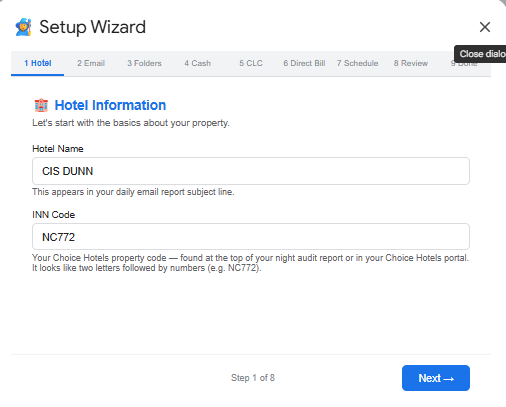
Enter your hotel name and INN code.
2
Email
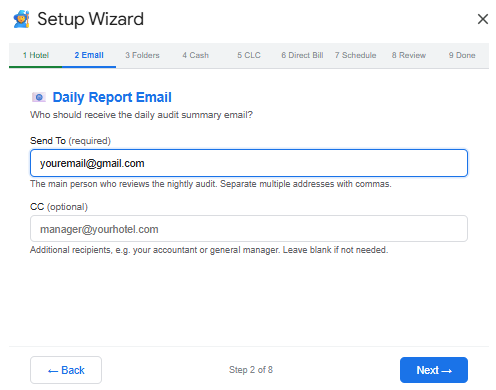
Enter who should get the nightly summary email.
3
Folders
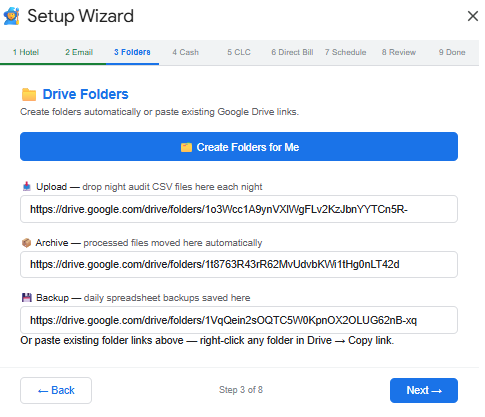
Just click Create Folders for Me.
4
Cash
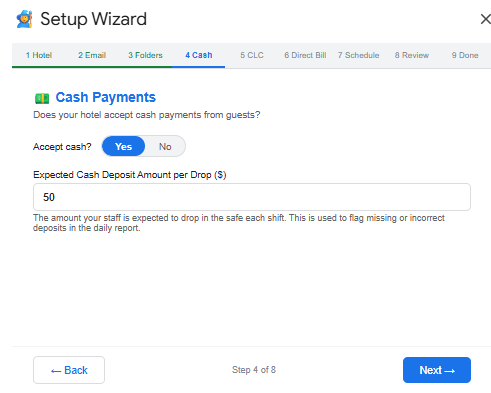
Toggle Yes/No. Only enter a deposit amount if cash is accepted as a deposit — otherwise leave it blank.
5
CLC
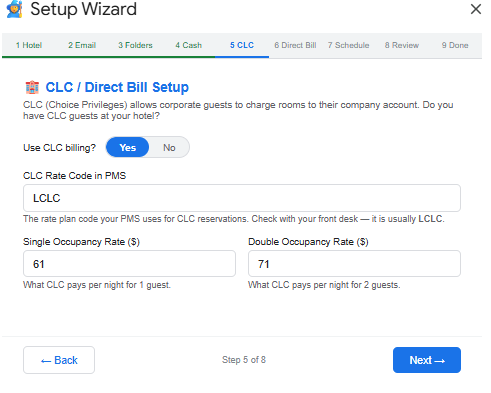
Toggle Yes if your hotel accepts CLC (Choice Privileges corporate billing).
6
Direct Bill
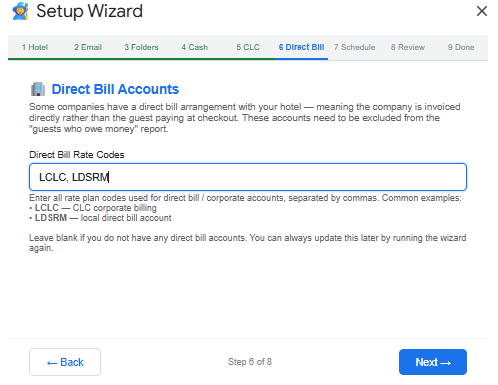
List your CLC rate code plus any other direct-bill account codes.
7
Schedule
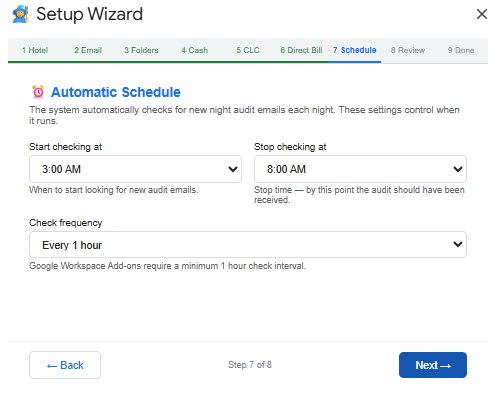
Leave the defaults as they are.
8
Review
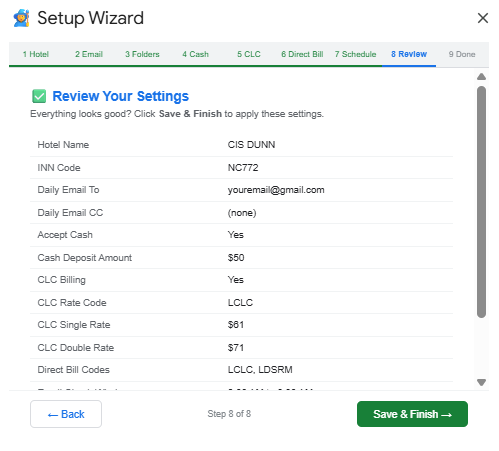
Check everything. Use Back to fix anything — you can re-run the wizard any time.
9
Done
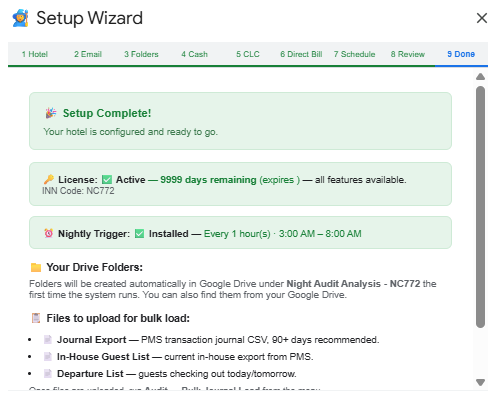
Confirm license, trigger, and folders look good, then click Finish.
3
Activate your license
Takes about a minute once you have your key.
1
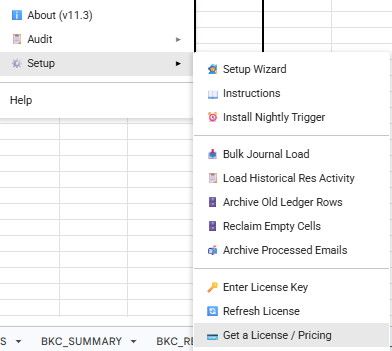
Buy a subscription
Go to lunahotelai.com/pricing, or from your sheet click
Setup → 💳 Get a License / Pricing.2
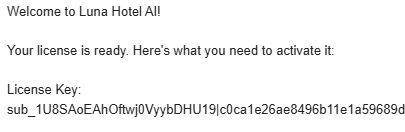
Check your email
Look for an email from support@lunahotelai.com — it contains your license key.
3
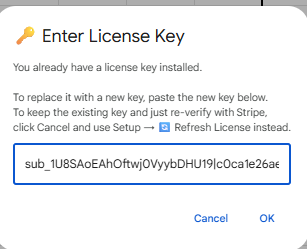
Enter the key
Click
Setup → 🔑 Enter License Key, paste the key, then click OK.4
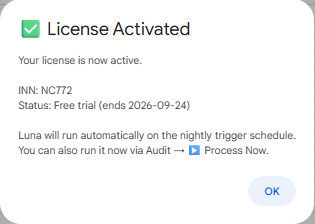
You're ready to run
A License Activated message confirms you're all set.
4
Turn on report delivery
This tells ChoiceAdvantage to email your nightly report to Luna automatically.
1
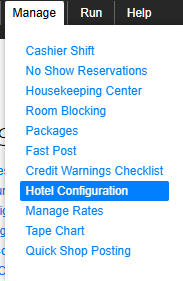
Open Hotel Configuration
In ChoiceAdvantage, go to Manage → Hotel Configuration.
2
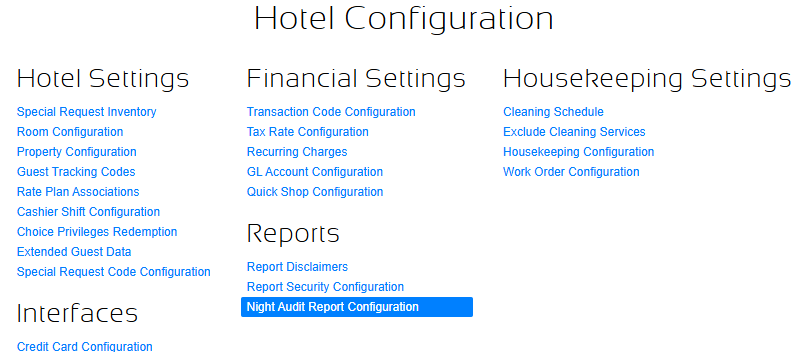
Click Night Audit Report Configuration
It's listed under Reports.
3
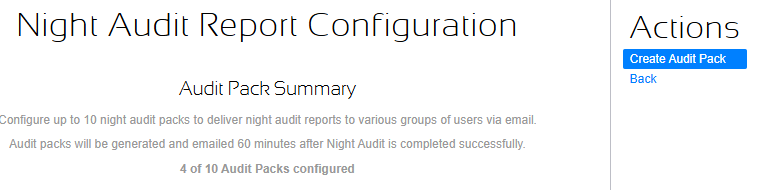
Click Create Audit Pack
Top right of the page.
4
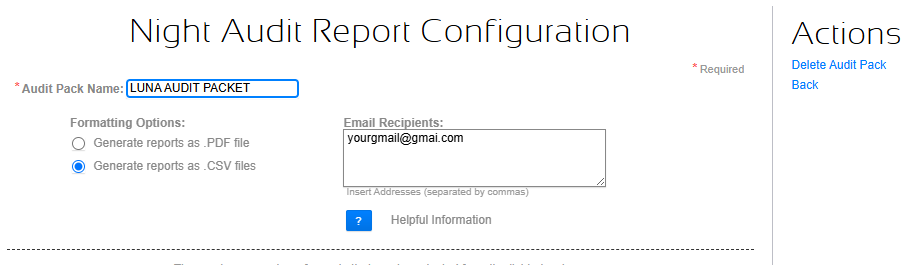
Name it and add your email
Name:
LUNA AUDIT PACKET · Recipients: the Gmail address Luna is configured with.
Select "Generate reports as .CSV files."
5
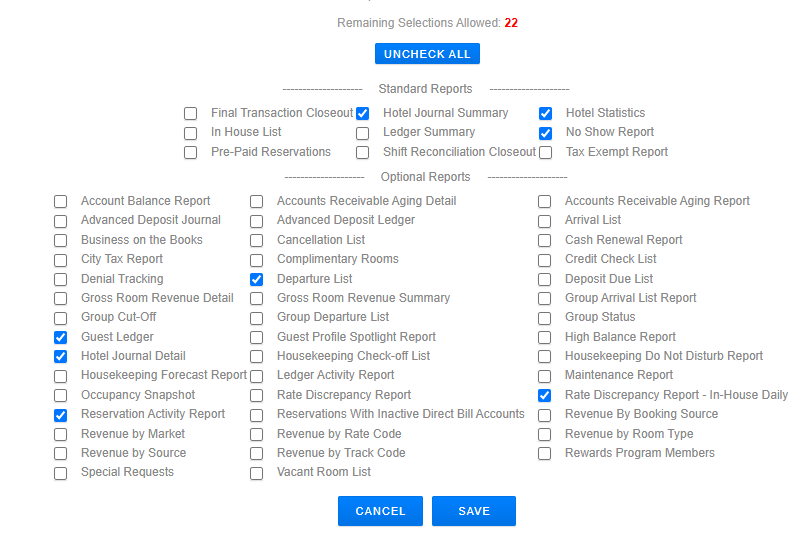
Check all 9 reports below, then Save
These exact reports — nothing more, nothing less.
Check all 9:
- Final Transaction Closeout
- Hotel Journal Summary
- Hotel Statistics
- No Show Report
- Departure List
- Guest Ledger
- Hotel Journal Detail
- Reservation Activity Report
- Rate Discrepancy Report - In-House Daily
5
Load historical data Optional
Skip this and Luna will still run every night going forward. Do this if you want reconciliation and trend data right away.
1
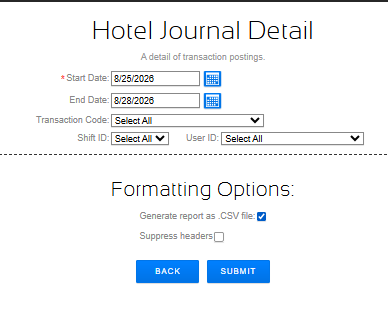
Run the Hotel Journal Detail report
In ChoiceAdvantage: Run → Reports → Hotel Journal Detail. Pick a date range — up to 15 days at a time. Select CSV, then Submit.
2
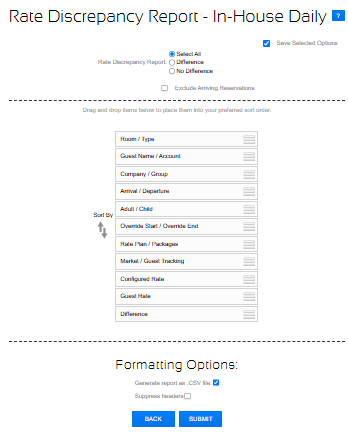
Run the Rate Discrepancy Report - In-House Daily
Run → Reports → Rate Discrepancy Report - In-House Daily. Select CSV, then Submit.
3
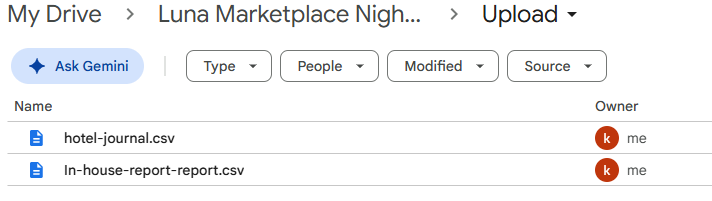
Drop both CSVs in your Upload folder
In Google Drive, open Luna Night Audit Analysis — [your INN code], then the Upload folder.
4
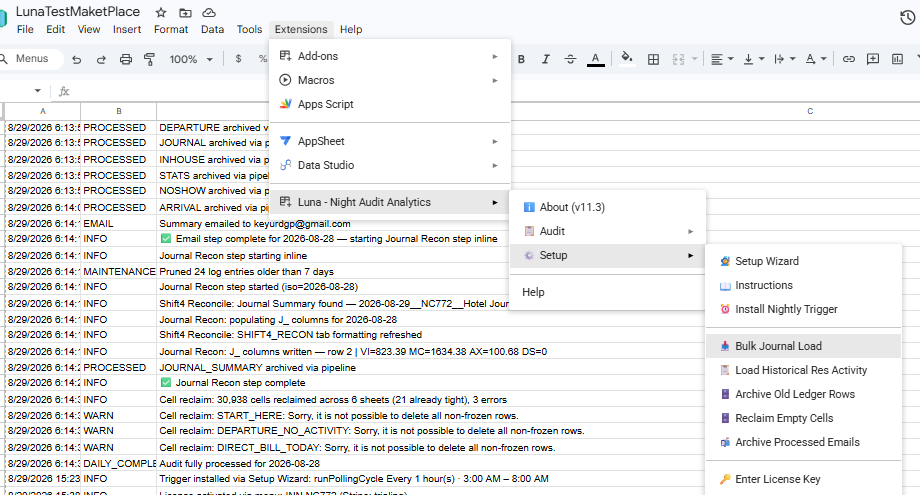
Run Bulk Journal Load
In your Sheet:
Extensions → Luna – Night Audit Analytics → Setup → Bulk Journal Load.5
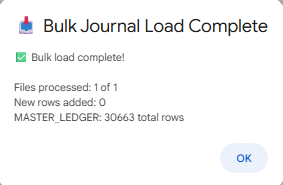
Confirm it's loaded
A Bulk Load Complete message shows how many rows were added.
Repeat as many times as you want. Duplicate rows are automatically skipped, so it's always safe to load more history later.
Why bother? Loading historical data lets Booking.com, Expedia, and CLC reconciliation run immediately instead of waiting weeks.
We suggest loading at least the current month.